A little bit of Android Grammar
In this post I'll survey and explain some of the more advanced concepts (or Grammar) of the Android operating system.
It should be noted that most of the images and dated information are taken from Wikipedia.
1. Android as an operating system
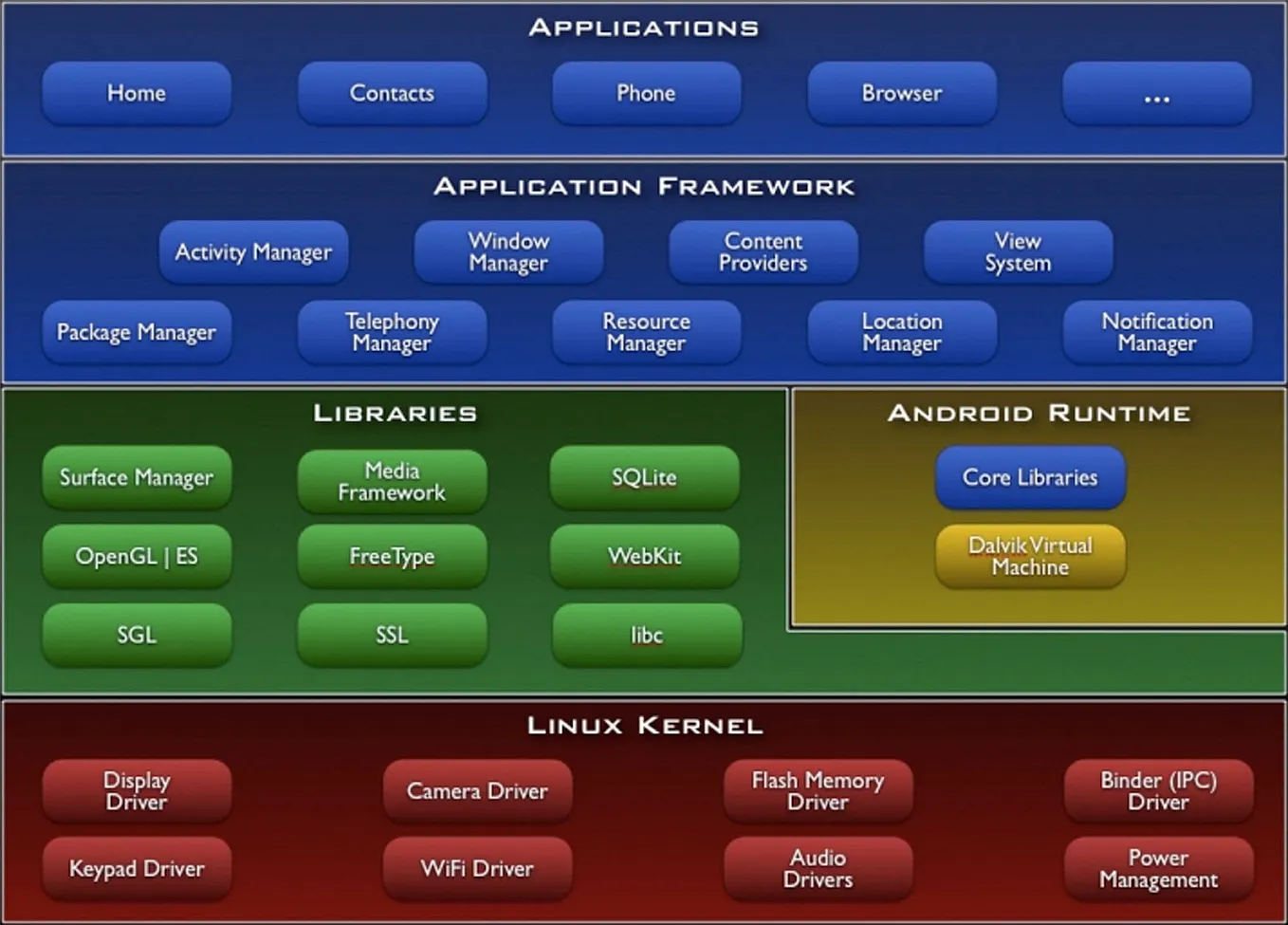
1.1. The red layer: Linux Kernel – (Android isn't Linux)

The Linux kernel is the kernel used in operating systems of the Linux family. The name "Linux" refers to the system's core, the kernel (kernel = the foundation of the system), meaning thousands of lines of code that form the basis of the operating system.
Today it's common to use the name Linux for an entire family of Unix-compatible operating systems that combine the Linux kernel with libraries and tools from the GNU project (GNU). Sometimes this also refers to complete Linux distributions (complete operating systems that include web servers such as Apache, graphical work environments such as Gnome, and office application suites such as Libre Office).
Because the Linux Kernel is under the GPL license, when Google or OEM manufacturers (like HTC, SAMSUNG, MOTOROLA) or chip manufacturers (like Qualcomm) integrate their code into the Kernel (intended for use under the Android system), they must also push the code back upstream. This means that any code Google wants to integrate into the Kernel, they'll also integrate into the original project, and therefore everyone will have access to the new piece of code in the Kernel (in other words: Google can't make use of the Linux Kernel, improve it, and keep those improvements only for itself - it has to share the rest).
Why the Linux kernel?
- The price - the Linux kernel is free.
- The goal was to create a mobile platform that would run on as many devices as possible, and adapting the Linux kernel to run on ARM processors from Nvidia, TI, and Qualcomm is relatively easy (since the driver model in Linux is very well understood).
- The kernel provides process management, memory management, connectivity, and more, ready out of the box.
- The Linux kernel is relatively highly secure and provides a good foundation.
The various Android versions are based on different Kernel versions:
Android 1.5 - based on Linux kernel 2.6.27.
Android 1.6 - based on Linux kernel 2.6.29.
Android 2.0/2.1 - based on Linux kernel 2.6.29.
Android 2.2 - based on Linux kernel 2.6.32.
Android 2.3 - based on Linux kernel 2.6.35.
Android 3.0/3.1 - based on Linux kernel 2.6.36.
Android 4.0 - based on Linux kernel 3.0.1.
Android 4.1 - based on Linux kernel 3.0.31.
Android 4.2 - based on Linux kernel 3.4.0.
1.2. The green layer, the second level: Libraries + Android Runtime
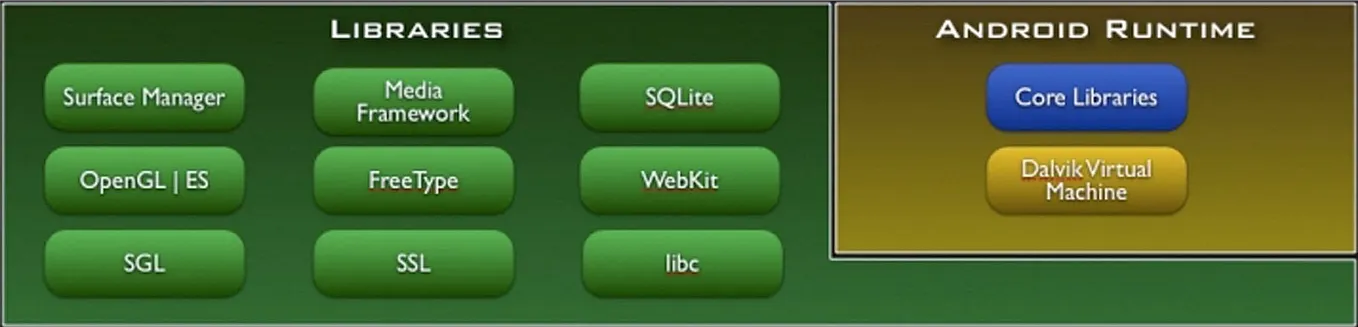
The second (green) layer is made up entirely of open-source libraries. These libraries serve various operating system services, and also developers.
- Media Framework – a library that provides essential communication features such as Codecs, various video and image formats (AAC, MP3, H.264, MPEG4, JPG, PNG), etc.
- SGL – a basic 2D graphics engine.
- OpenGL / ES – a set of 3D interface programs and applications (API) capable of performing 3D hardware acceleration.
- WebKit – the WebKit browser libraries, an open-source browser supporting, among other things, JavaScript and CSS.
- SSL – communication protocols enabling secure and encrypted communication between two applications.
- Surface Manager - a library enabling access to the "front-facing" device driver library of the device's display.
- SQLite – enables reading and writing directly from a database on disk (without a mediating server process).
- Bionic - a libc library adapted for Android (due to licensing issues with the libc library).
Android Runtime
- Core Libs - a library containing the core original source code of the Android operating system (written in Java).
- Dalvik VM - Dalvik is a virtual machine written from scratch specifically for the Android system, intended for running Apk files.
Why create a new virtual machine (Dalvik) instead of using a Java VM?
- Java VM costs money - it's owned by Oracle. If every manufacturer were required to go to Oracle to negotiate the cost of using a Java VM, the Android platform wouldn't achieve its goal (to be a free mobile platform that runs on as many devices as possible).
- Over the years, the Java VM developed around Intel processors, since that's mostly what was in computers and business servers, and therefore it isn't well suited to run on ARM processors (at least not in its current form).
- The Java VM loads the software into memory (from the hard disk) and only then creates the object, which makes sense, since the hard disk is much slower than RAM. Dalvik doesn't do this, since mobile devices don't have a hard disk - there's RAM and flash storage (very fast, unlike a mechanical hard disk, so there's no reason to do that).
1.2.1 Dalvik
Let's analyze the situations when we write for Dalvik vs. for the Java VM:
When we write for the Java VM, we write in the Java language, the Java compiler compiles the code into bytecode (a hybrid of half programming language and half machine language), and we get a class file, and that file will run on the Java VM.
When we write for Dalvik, we write in the Java language, the Java compiler compiles the code into bytecode, and we get a class file. Then the Dalvik compiler compiles the bytecode again, and we get a dex file - that file will run on the Dalvik VM.
In Java, we collect all the class files into a Jar file and then compress it as a zip file. In Android, we don't do this, but even as uncompressed code, code suited to Dalvik will be smaller than Java code, and that's because the Dalvik compiler performs very high optimization (identifies duplicate code, can change data structures and libraries as needed, changes byte order, etc.). As a result of all this, Dalvik uses less memory than the Java VM.
For anyone interested in going deeper, here's an hour-long video from Google I/O 2008 explaining in detail how Dalvik works:
1.3. The blue layer: Applications Framework

The third level is called the Application Framework, and in other words can also be called the API Level.
This is essentially the system's skeleton - the Framework exposes the system's capabilities to applications. When a developer sets the app's API Level, they're essentially determining what will be possible (or accessible) at this layer, and as a result, which Android versions the app can be installed on. For example, at API Level 10 (Android version 2.3.3), it became possible for the first time to make use of the NFC component, and only apps with minimum support for API Level 10 and above will be able to make use of this component.
1.4. The blue layer: Applications

In the fourth and final layer, we find all the built-in, basic apps of the system (for example: the dialer, contacts, messages, browser, launcher, etc.).
An APK file (or app) is essentially a collection of dex files (code suited to run on the Dalvik VM), resources (image files, video files, audio files, XML files, etc.), and possibly also some native libs.
All the layers together, as Android is built:
2. ADB
ADB (short for Android Debug Bridge) is a program run from the command line (cmd / terminal) on the computer that communicates with the device or emulator (in other words, the adb program opens a command line to the device).

adb is used by developers to manage the Android system directly from the computer. It acts as a driver between the device and the computer and adds commands to the terminal (/cmd) that give developers the ability to perform various operations, such as instructing the device to enter certain states, instructing it to install a specific app (located on the computer and not on the device), etc.
When we open ADB (it can be opened from the sdk/platform-tools folder), it first checks whether an ADB process is already open; if not, it starts the process. When ADB comes up, it connects to TCP port 5037 and listens for commands from ADB (the command line). The server searches for and establishes connections to every emulator/device in the port range 5555 to 5585. Each emulator/device "acquires" a pair of ports, for example:
Emulator 1, console: 5554
Emulator 1, adb: 5555
Emulator 2, console: 5556
Emulator 2, adb: 5557
When opening ADB and connecting to a device, what happens in the background on the device is the opening of a Linux Shell, and therefore a variety of operations can be performed by writing commands directly to the device, similar to a terminal in Linux.
Here you can find a variety of commands that can be used in ADB (with explanations).
3. Bootloader

The Bootloader isn't really directly related to the Android operating system - rather it's a special software component that runs while the system boots up (after the device powers on and before the Android system loads). Its job is to perform memory checks and load the operating system (OS) into RAM, and "hand over the reins" of the device to the operating system.
- The Bootloader is often compared to the Bios software we know from the PC world, where the Bios is essentially a unit completely separate from the operating system that comes up during boot, before the operating system (OS) loads.

4. Recovery
The word Recovery refers to a separate partition where the recovery console is installed (which can be reached via a combination of several buttons, the combination being device-dependent). The recovery included in the Android system is, unfortunately, very simple in its options, but it's relatively easy to obtain its source code and add (develop) additional options. Thanks to the talented developers who flood the Android community, there are several recoveries that do this. The most common of them are: Clockwork Recovery, OpenRecovery.
The recovery built into the Android system is intentionally limited. It's meant to perform specific operations and therefore offers only the following 2 options: wipe all system and user files, and install system updates. Whereas the recovery developed by various developers usually offers a variety of additional options such as:
- Backup and restore option.
- Deleting specific partitions.
- Installing packages not signed by official parties.
- The ability to mount various partitions.
5. APK

Apk is the file extension in which Android system apps are saved. You can compare the extension to the bat, jar, exe extensions, etc. The file itself is a completely regular zip file (you can change its extension from app.apk to app.zip and open it normally).
If we open it, we'll see a number of folders and files - let's try to understand what's going on here:
- META-INF: This library contains the signature of the zip file. Without the file's signature, you can't install the apk (the app), because the signature contains the file's 'ID card'. During installation, the system checks whether the signature matches and gives an error message if one of the files is different. It should be noted that the file can be re-signed.
- res: This folder contains the resources (files) for the app's use, for example: images, xml files, etc.
- AndroidManifest.xml: A file required for the app's installation on the device to succeed. The file contains the app's details (app name, version, permissions, etc.).
- classes.dex: A file containing the classes the programmer used to write the app. This file is written in Java bytecode (compiled Java) and is fully interpreted by the Dalvik virtual machine.
- resources.arsc: A compressed (and compiled) file containing the resources.
You can install the apk file in two ways:
- Copy it to the device (internal memory / SD card) and enter the folder (with a file manager such as Astro or ES File Explorer) and install it (make sure "Unknown sources" is checked under Settings -> Applications).
- Install it via ADB (make sure the device is connected to the computer via a USB cable and that under Settings -> Applications -> Development -> USB debugging is checked).
6. Root
Concept: granting system administrator permissions on the device (SuperUser). Like Administrator on Windows, so that we can access and play with things that aren't accessible to a regular user's permissions (like the System folder in our case) (the concept comes from the Linux world, where the system folder is called root, and is marked with /). The System folder is protected, and to change things there we need that same permission. Usually regular users have no need for root, but developers, hackers, and other curious folks who want to change things must have this permission.
Examples of why that permission (Root) is needed:
- Until Android version 2.2 (Froyo), Android had no Hebrew support, and to add Hebrew fonts to the device, system files needed to be modified, so SuperUser permissions were required, and to obtain those permissions we needed to root the device.
- Also, there are apps that require Root, such as: screen capture (except on some devices), CPU overclocking, repartitioning memory partitions, installing a different ROM, and more.
- Even though we mentioned that these permissions usually aren't needed by regular users, the process is almost always very easy, and most users perform it in order to "gain" full freedom.
7. Rom
Rom = the operating system. (Not Windows Phone 7, Android, or iOS, but different versions/distributions of Android), (similar to the various distributions of Linux).
The rom "arrives" as an img file (often it arrives with additions, packed in a zip file); the file is uploaded to the memory card and installed via recovery (or via download mode on Samsung devices). Android is an open operating system, which means everyone can obtain the source code and make changes as they see fit. Following on from that, there are developer groups who release their own roms (operating systems in their own versions) after changes they've made, such as improving battery life, improving device performance, removing built-in apps that aren't in use, replacing apps with 'lighter' versions, graphical changes, and more.
- In the past (and unfortunately it still happens today), there were cases where manufacturers abandoned devices and stopped releasing updates for them (for example, Samsung with the i7500 device). The developer community often takes care of those users and releases roms with newer Android versions or new interfaces (like what happened with the Sense 3 interface, on HTC's Desire device).
8. Odexed & Deodexed
We've all come across this term, but what does it actually mean?
I assume you know that the Android system has various partitions, like the system/ partition which contains all the system apps (which can't be modified or deleted), and the data/ partition which contains user apps (which can be modified and deleted).
When the device boots up, the system/ partition is the first to load, and thus apps found in this partition are given preference for being in memory.
There are two tracks by which the system can work:
- Odexed - the cache of each app is held in a separate file called odex, and is loaded into the virtual machine while the device boots, which reduces the time needed for the device to boot.
- Deodexed - the cache of each app is held inside the Apk itself, in a file called classes.dex, and increases device boot time.
Most manufacturers (OEMs) choose the first option, since it improves device boot times, because the cache is built as part of the VM itself, whereas in the second option the cache loads when the app (the apk) is opened. But Deodexed roms allow changing the look and feel of built-in system apps, and so this is a very popular option despite everything. In addition, in practice, only the device's boot time the first time (after clearing the Dalvik cache) is longer than usual.
9. Summary
We went over the Android system's architecture and the various libraries used at each layer, gave an explanation for the choice of the Linux kernel, and for building a unique VM (Dalvik). From there we moved on to the system's basic concepts such as ADB, Bootloader, Recovery, apk, Root, and Rom. And finally, we also touched on a more advanced concept: the difference between Odexed and Deodexed apps.